Here’s how you can easily find your system serial number in CheckMark Software, whether you’re using Windows or macOS.
How to Find Your System Serial Number on Windows Versions
- Open CheckMark Software.
- Click Help in the upper menu.
- Select the corresponding About option for the CheckMark Software you are using:
- CheckMark Payroll: About CheckMark Payroll
- CheckMark MultiLedger: About MultiLedger
- CheckMark 1099: About CheckMark 1099
- CheckMark 1095: About CheckMark 1095
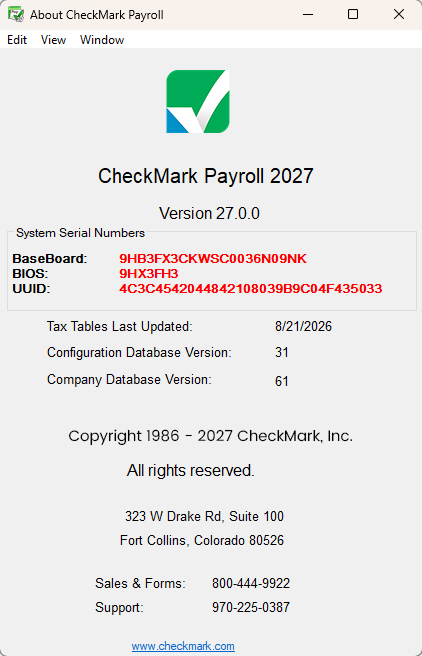
- A pop-up window will appear displaying your system serial numbers — Baseboard, BIOS, or UUID.
How to Find Your System Serial Number on macOS Versions
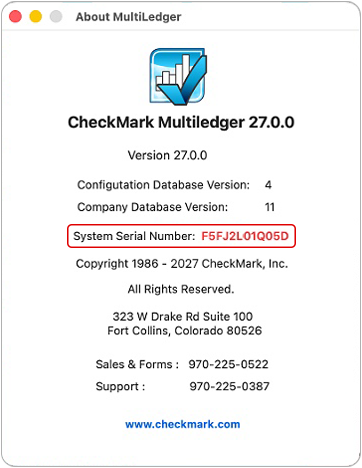
Every Mac computer has a unique system serial number. You can find your serial number in CheckMark applications in a few simple steps:
- Open CheckMark Applications.
- Click the application name in the top-left corner.
- CheckMark Payroll: CheckMark Payroll_64 (or) CheckMark Payroll_32
- CheckMark MultiLedger: MultiLedger_64 (or) MultiLedger_32
- CheckMark 1099: CheckMark 1099 Print_64 (or) CheckMark 1099 EFile_64
- CheckMark 1095: CheckMark 1095 Print_64 (or) CheckMark 1095 EFile_64
- Select the corresponding About option:
- CheckMark Payroll: About CheckMark Payroll
- CheckMark MultiLedger: About MultiLedger
- CheckMark 1099: About CheckMark 1099
- CheckMark 1095: About CheckMark 1095
- A pop-up window will appear displaying your System Serial Number.