
CheckMark Knowledge Base CheckMark Knowledge Base

  • PRODUCTS
    • ONLINE SOFTWARE
      • CheckMark Online Payroll
      • CheckMark Online 1099
      • CheckMark Online 1095
    • DESKTOP SOFTWARE
      • CheckMark Payroll Software
      • CheckMark MultiLedger
      • CheckMark 1099 Software
      • CheckMark 1095 Software
    • SERVICES
      • HR Services
      • Time & Attendance
    • PAPER PRODUCTS
      • Checks & Envelopes
      • Business Forms
      • Tax Forms
    • ADD-ONS
      • CheckMark Cloud Backup
  • STORE
    • Online Store Home
    • Software
    • Software Updates
    • Bundles
    • Checks & Envelopes
    • Business-Forms
    • Tax Forms
    • HR Support
  • MORE
    • ABOUT COMPANY
      • Our Story
      • Culture
      • Contact Us
    • PARTNER PROGRAMS
      • Consultant Program
      • Software Partner
      • Resellers Program
    • SUPPORT
      • Request Support
      • Knowledgebase
      • Blog
      • Tutorials
      • Find a Consultant
  • Sign In
    • My Account
    • 2026 Updates Portal
    • ONLINE SOLUTIONS
      • Employer Login
      • Employee Login
    • OTHER LOGINS
      • HR Services
      • Time & Attendance
  • Free Trial
Home / CheckMark Payroll, Setting Up a Company / How to Set Up Employee Deduction in CheckMark Payroll

How to Set Up Employee Deduction in CheckMark Payroll

Set Up Employee Deduction in CheckMark Payroll

Setting Up Employee Deductions

In addition to tax deductions, you can set up Deduction categories for an employee.

Assigning a Deduction to an Employee

You can assign a maximum of 16 Deduction categories to each employee. Before a Deduction category can be assigned to an Employee, it must be set up on the Deductions window. For more information on setting up deductions, see “Setting Up Deductions.

  1. Select the Deductions view tab on the Employees window.
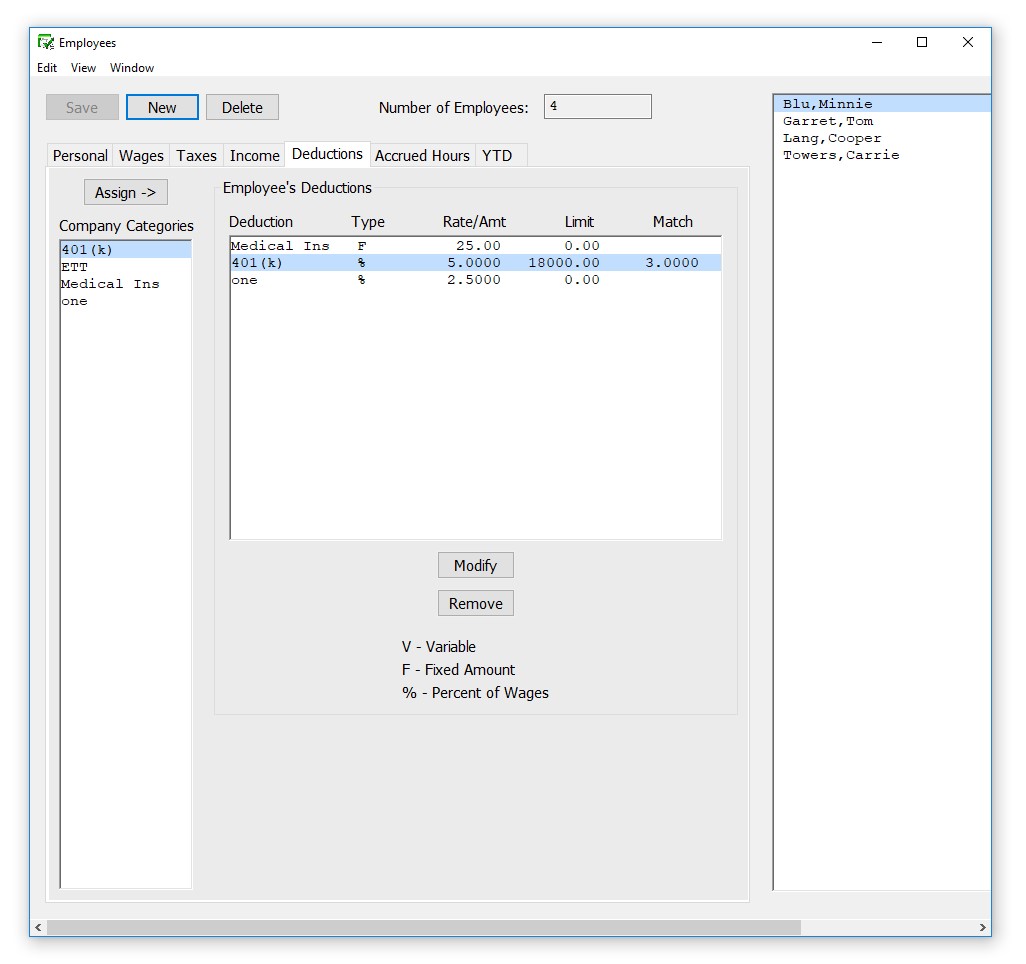
Employee Deductions

  1. Select an employee from the employee list if one is not already selected.
  2. Select the Deduction category for the employee from the Company Categories list.

The categories that appear in the Company Categories list are those that  were set up with the Deductions window.

  1. Click Assign.

Tip: You can also double-click a Deduction category to assign it to an employee. Select the category assigned to the employee and click Modify to change a category’s values. Modify the rate/amount, limit, or employer match in the edit box and click OK. The value for a Variable Amount Deduction is entered when you

calculate the employee’s pay on the Calculate Pay window.

  1. Click another view tab after you’ve finished assigning deductions to this employee to continue setting up the employee or click Save.

Modifying a Deduction Category from an Employee

You can change the amount of an existing Deduction category if it’s not setup as V-Variable. This amount is entered when you calculate the employee’s pay on the Calculate Pay screen.

  1. Highlight the employee you want to adjust.
  2. Select the Deduction category from the list of incomes already assigned to an employee.
  3. Click Modify and adjust the rate/amount, limit (if applicable) and match (if applicable).
  4. Click OK.

Removing  a Deduction Category from an Employee

You can remove a Deduction category from an employee as long as the employee doesn’t have any paychecks associated with it. The only time to remove an Deduction category from an employee is after you have started a new year, but before you have created a payroll in the new year. To stop the category from being applied mid year, simply modify the amount/rate to zero in the Employee set up.

  1. Select the Deduction from the Employee’s Deduction list.
  2. Click Remove.
  3. Click Save.

Note   If you want to zero out a deduction for just one paycheck, you can use the Disable Deductions feature in the Calculate Pay window instead of changing it in the employee setup, “Disable Calculation”.

Related

deduction categoriesemployee deductionsmandatory payroll deductionspayroll deduction categoriespayroll deductionsSetting Up Employee Deductionstypes of payroll deductionsvoluntary payroll deductionsWhat Are Payroll Deductions CheckMark PayrollSetting Up a Company

Search the Knowledge Base

Browse by Topics

  • Getting Started
  • Setting Up a Company
  • Processing Your Payroll
  • Reports
  • Customization
  • Miscellaneous
payroll software

ONLINE SOFTWARE

  • CheckMark Online Payroll
  • CheckMark Online 1099
  • CheckMark Online 1095

DESKTOP SOFTWARE

  • CheckMark Payroll Software
  • CheckMark MultiLedger
  • CheckMark 1099 Software
  • CheckMark 1095 Software

SERVICES

  • HR Services
  • Time & Attendance

PAPER PRODUCTS

  • Checks and Envelopes
  • Business Forms
  • Tax Forms

ABOUT US

  • Our Story
  • Consultant Program
  • Software Partner
  • Resellers Program
  • Contact Us

RESOURCES

  • Knowledge Base
  • Blog

CONTACT INFORMATION

  • 323 W Drake Rd, Ste. 100, Fort Collins, CO 80526
  • Tel: 970.225.0522
  • Fax: 970.225.0611
  • sales@checkmark.com

| | |

Terms of Service | Privacy Policy | Sitemap
Copyright © 2026 CheckMark, Inc.