
CheckMark Payroll Software stores company data in a database. When you create a database in CheckMark Payroll Software, it will be stored in the following default path: HD/Users/user/Documents/CheckMark/Payroll/Year.
Important Update (2026 onwards): Starting with the 2026 update, each database can store only one company. In previous versions, multiple companies could be stored in a single database. Plan accordingly when managing databases.
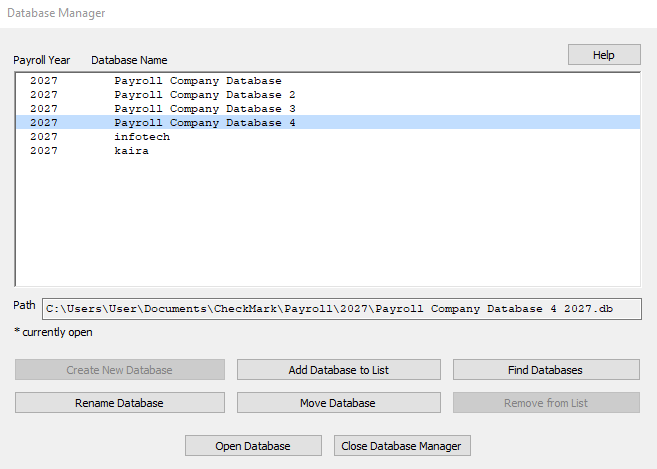
Storing Company Files in Separate Databases
Starting in 2026, each company must be stored in its own individual database. This change ensures that each company’s data is kept separate and managed independently. When performing actions such as backing up, restoring, closing, or advancing to a new year, these operations will now be applied to each company’s database individually. This new structure improves data security and management by keeping each company’s information distinct, reducing the risk of cross-company data errors.
Add Database to List
This button allows you to add an already existing database to the list. For example, if you copied over a database from another computer and the Database Manager does not list this database, you can choose Add Database to List and browse to that location to update the Database Manager’s list.
- Click on Add Database to List. An Open dialog box appears.
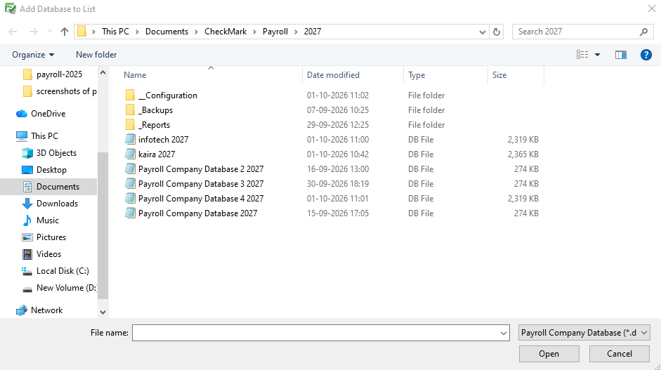
- Browse to the location where the database is saved.
- Select the database and click Open. The database is added to the list in the Database Manager.
Rename Database
This option allows you to rename the database. It is recommended that you use only alpha-numeric characters.
- Click Rename Database. The following alert appears:
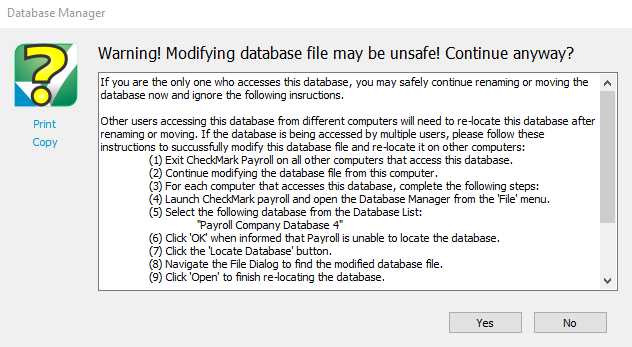
2. Click Yes.
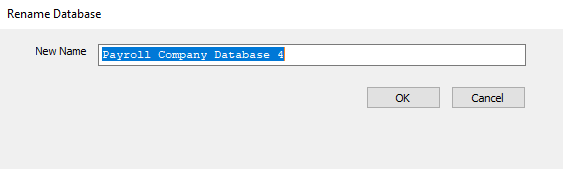
3. Enter the new name and click OK to save.
Open Database
This option allows you to choose a different database and open it up to view all saved payroll companies in that particular database. Select the database you want to open and press Open Database. The new database is now open and all companies stored in this database are available under the Open Company command under the File menu.
Close Database Manager
This option closes the Database Manager window.
Open Company
This command allows you to choose a specific company in an available database. Once the program is launched, choose Open Company from the File menu. Select the database, if necessary, and then select the payroll company to open and click Open Company.
Exiting CheckMark Payroll Software
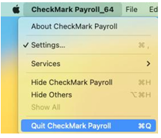
To exit or quit the CheckMark Payroll Software application:
- Choose Exit from the File menu (Windows)
- Choose Quit CheckMark Payroll from the CheckMark Payroll_64 menu at the top left corner (Mac)
Related Articles
How to Get Started with CheckMark Payroll Software
How to Install CheckMark Payroll Software
How to Use Command Center in CheckMark Payroll Software
Tips for Navigating Windows Within Payroll
How to Convert Old Company Files in CheckMark Payroll Software
How to Start CheckMark Payroll Software and Open the Sample Company