
If you need to install the software on multiple computers, additional licenses are required for each computer. All installations, activations, and software use require an internet connection—no more CDs.
Installing and Activation of CheckMark Payroll Software
- Open the folder containing the installation file for the software update, and double-click the file to start the installation process. Ensure your computer is connected to the internet during installation for a smooth setup.
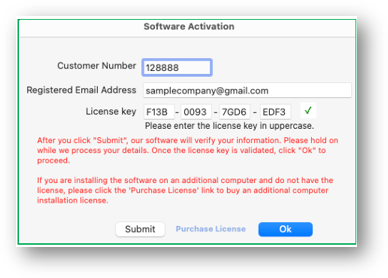
- After CheckMark Payroll Software is successfully installed on your computer, a software activation screen will appear. Enter your Customer ID, Registered Email Address, and License Key, and then click Submit to initiate the activation process. (Please enter the license key in uppercase)
Note: The Customer ID can be found on the Account Info page, and the License Key can be located on the Product Details page.
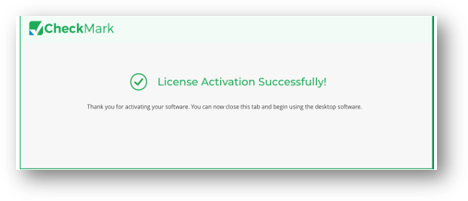
- A web page will then open in your browser to validate your license information. The process will take a few seconds. Make sure your internet connection is stable during validation, and do not close or refresh the page.

- Once your license information is validated, a success message will appear, and you can close the tab.
- The OK button will now be enabled on the software activation screen. Click OK. Congratulations!
Your license is now activated, and your software is ready for use.
 How to Install Software on Additional Computers
- Sign in to My Account, click PRODUCTS in the menu, and go to Product Details. Click the OS version for which you want to download the software installer.
- Run the downloaded installer and follow the on-screen instructions to complete the installation.
- After installation, a software activation screen will appear. Enter your Customer ID, Registered Email Address, and License Key used on your original computer, then click Submit.
Note: After entering the license key, press ENTER to enable the Submit button.
- An alert message will notify you that the maximum device limit has been reached for your license; click OK to proceed.
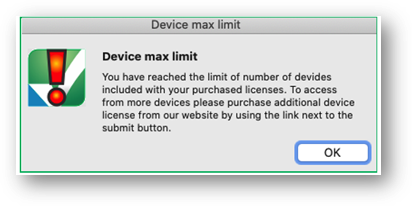
- After the device limit pop-up is closed, the Purchase License button on the activation pop-up will now be enabled. Click on the Purchase License button. This will automatically log you into your CheckMark account and take you to the web page to buy additional computer licenses.
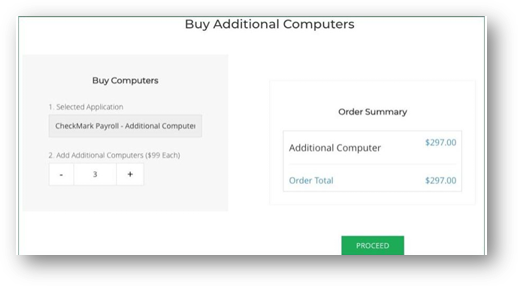
- Select the number of additional licenses needed, each costing $99, and click PROCEED to complete your payment. After the successful payment, close the webpage and return to the Software Activation screen, where the OK button should be enabled. Click OK to finish the activation process. Congratulations! Your license is now activated, and your software is ready for use.
Note: To access your previous companies’ data from another computer, ensure that you have copied the company’s database file from the old computer to the new one where CheckMark Payroll Software is installed. Use the Restore Database option from the File menu to restore previously backed-up company data. Alternatively, use the Database Manager option from the File menu to fetch company databases.
Important:
- You can only run the companies that have been paid for under your current license.
- You will only be able to open the companies that were created on the previous computer.
- To add new companies to a newly licensed computer, you must purchase additional company licenses. If you have already purchased the licenses, you can proceed to add the companies to the new computer.
Related Articles
How to Get Started with CheckMark Payroll Software
How to Use Command Center in CheckMark Payroll Software
How to Use Database Manager in CheckMark Payroll Software
Tips for Navigating Windows Within Payroll
How to Convert Old Company Files in CheckMark Payroll Software
How to Start CheckMark Payroll Software and Open the Sample Company