
Before you can print or e-file 1099 forms, you must add recipients record for each individual or business that will receive a 1099. Each recipient record stores the information required to complete the selected 1099 form, such as the recipient’s name, Taxpayer Identification Number (TIN), address, and payment details.
Adding 1099 Recipients
You can create and add multiple recipient records, and each record is available for future tax years, making it easy to manage recurring recipients.
Creating a New Recipient
- From the left navigation menu, select 1099 Recipients.
- Click Add 1099 Recipient in the upper-right corner.
- Enter the recipient’s First Name and Last Name.
- From the Recipient Type drop-down list, select the appropriate 1099 form:
- 1099-NEC – Nonemployee compensation for independent contractors
- 1099-MISC – Miscellaneous income and other payments
- 1099-INT – Interest income from financial institutions.
- 1099-DIV – Dividends and investment distributions received
- 1099-R – Retirement, pension, and IRA distributions
- 1099-S – Proceeds from real estate sales
- Click Save.
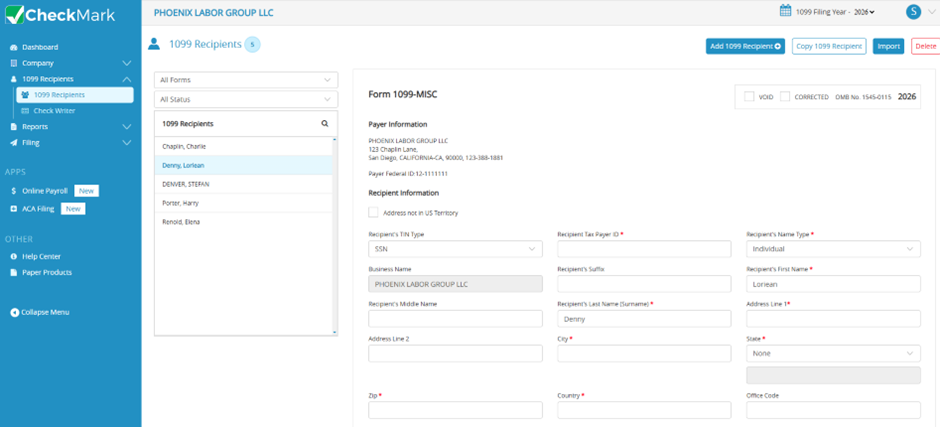
The recipient is added to the 1099 Recipients list. Select the recipient from the list to complete the remaining information. The fields displayed will vary depending on the 1099 form you selected. For example, if you selected 1099-NEC, the screen displays the fields required for Form 1099-NEC.
Completing Recipient Information
- Enter the recipient’s mailing address, Taxpayer Identification Number (TIN), and any other required information.
- If the recipient’s address is outside the United States or its territories, select Address Not in U.S. Territory, and then enter the appropriate state or province (if applicable) and country.
- Complete all remaining fields applicable to the selected 1099 form.
- Click Save to save the recipient record.
Validating Recipient Information
If any required information is missing or contains an invalid value, CheckMark Online 1099 displays a validation message.
- Click Continue Anyway to save the record with the current information.
- Click Cancel to return to the recipient record and make corrections.
Note: After the record is saved, fields containing invalid or incomplete information are highlighted in red. Some fields do not accept invalid values and will remain blank until valid information is entered. Correct any highlighted fields before printing or e-filing your 1099 forms.
Related Links: