
If you already have recipient information stored in another application or spreadsheet, you can import recipients it into CheckMark Online 1099 using a .txt (tab-delimited) or .csv file. Importing recipients saves time and eliminates the need to enter records manually.
Importing Recipients
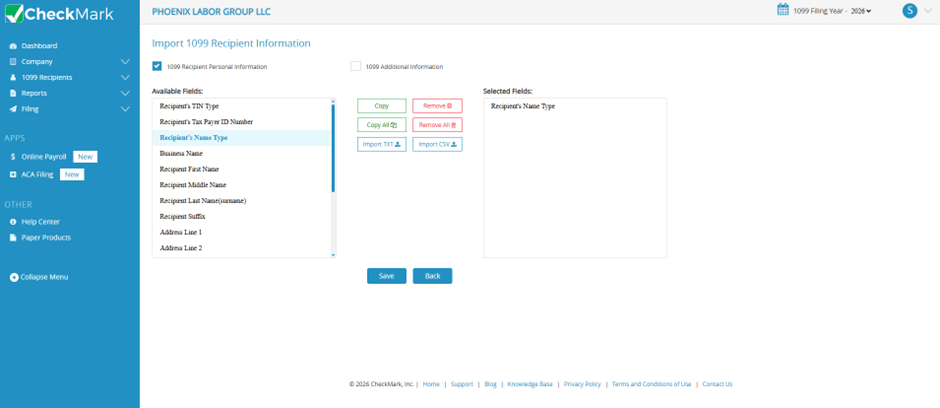
- From the left navigation menu, select 1099 Recipients.
- Click Import in the upper-right corner.
- Select the recipient information you want to import:
- 1099 Recipients Personal Information
- 1099 Additional Information (optional)
- Select the fields to import. The available fields vary depending on the selected 1099 form type.
- Click Browse (or Choose File) and select the .txt or .csv file to import.
- Click Open, then follow the prompts to complete the import.
Note: Select Replace Existing Recipients if you want the imported records to overwrite existing recipient information with matching records.
Import File Format
CheckMark Online 1099 supports importing recipient data from tab-delimited (.txt) files and comma-separated (.csv) files.
For tab-delimited (.txt) files:
- Each field must be separated by a Tab.
- Each recipient record must end with a Return (new line).
- The order of the fields in the file must match the order of the fields selected during the import process.
Example: Power[tab]Max[tab]44 Main ST[tab]”space”[tab]Fort Collins[tab]CO[tab]80525[tab]123- 45- 6789[return]
Empty Fields
If a field does not contain a value (for example, Address Line 2), you can:
- Leave the field empty by using two consecutive tabs.
- Or enter a blank space as a placeholder.
Both of the above formats are valid: Power[tab]Max[tab]44 Main ST[tab][tab]Fort Collins[tab]CO[tab]80525[tab]123-45- 6789[return]
Important: The selected import fields must appear in the same order as the columns in the import file. If the field order does not match, data may be imported into the wrong fields.
Related Links: