
CheckMark Online 1099 allows you to generate IRS-compatible CSV files to e-file 1099 forms through the IRS IRIS Taxpayer Portal. After creating the CSV file, simply upload it to the IRIS portal to complete your 1099 filing.
Before You Begin
-
- Verify that your company information is complete.
- Ensure all recipient information has been reviewed and validated.
- Confirm that you have selected the correct 1099 form type before generating the file.
Creating a CSV File for IRIS E-Filing
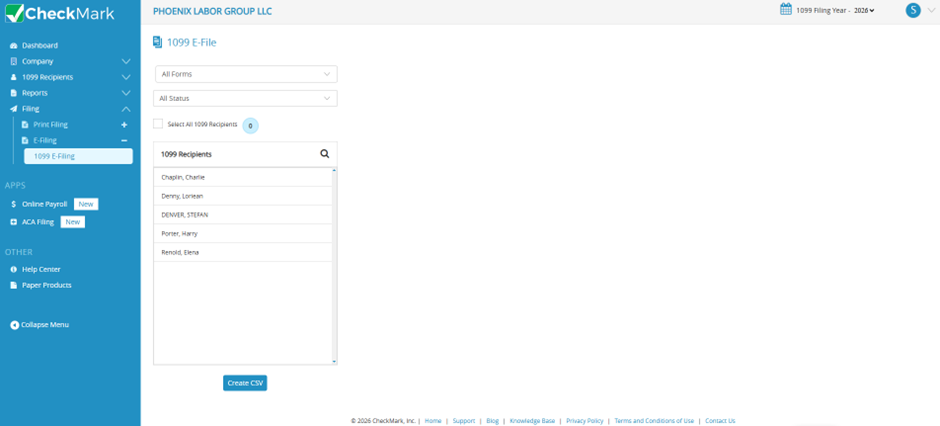
- Select Filing > E-Filing.
- Click 1099 Recipients Filing.
- From the All Forms drop-down list, select the appropriate 1099 form:
- 1099-NEC
- 1099-MISC
- 1099-INT
- 1099-DIV
- 1099-R
- 1099-S
- (Optional) Use the Status filter to display recipients based on their filing status.
- Select the recipients you want to include in the e-file.
- Click Create CSV.
- The application generates and downloads the CSV file to your computer.
Note: If your filing includes more than 100 recipients, CheckMark Online 1099 automatically splits the data into multiple CSV files, with a maximum of 100 recipients per file. Upload each generated file separately through the IRS IRIS Taxpayer Portal.
Submitting the CSV File
After the CSV file has been generated:
- Sign in to the IRS IRIS Taxpayer Portal.
- Upload the downloaded CSV file.
- Follow the IRS instructions to validate and submit your filing.
Related Links: