
After completing the company setup, the next step is to add employees and enter the information required for ACA reporting. This chapter explains how to create employee records, maintain personal information, and enter the ACA data required to generate Forms 1095-B or 1095-C.
Complete the Personal Information section before entering ACA-related information in Additional Information.
Personal Information
The Personal Information screen is used to create and maintain employee records. The information entered here is used throughout the application and on the employee’s ACA forms.
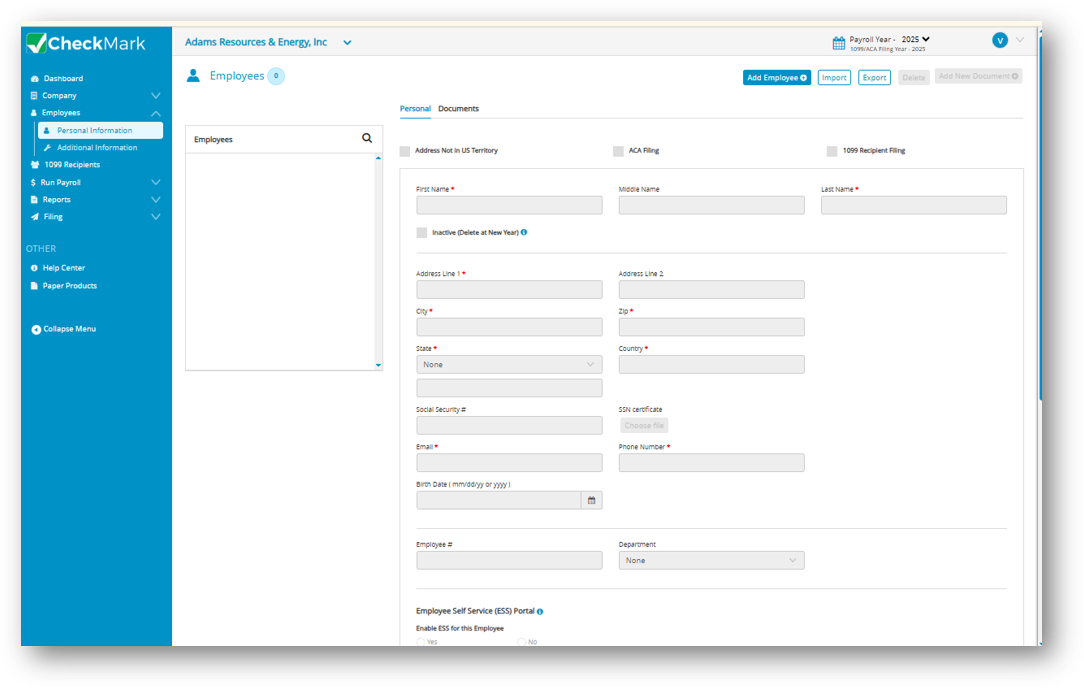
Adding a New Employee
- Select Employees > Personal Information.
- Click Add Employee. The Add Employee side panel opens.
- Enter the employee’s First Name and Last Name. Middle Name is optional.
- Click OK. The employee is added to the employee list.
Entering Employee Information
- Select the employee from the list.
- Enter the employee’s address information.
- If the employee’s address is outside the United States, select Address Not in U.S. Territory, then enter the applicable Country and State.
- Enter the employee’s Social Security Number (SSN).
- Enter the Date of Birth only if an SSN is not available.
- Enter the employee’s Email Address, Phone Number, and Employee ID.
Employee Self-Service (ESS) Portal
If you want the employee to access their Form 1095 electronically:
- Set Enable ESS for This Employee to Yes.
- Ensure a valid email address has been entered for the employee.
- The employee will receive an email containing their ESS Portal username and password, allowing them to securely view their Form 1095 online.
Saving Employee Information
- Click Save to save the employee record.
- If all required information is valid, the employee information is saved successfully.
- If validation errors are found, the application displays messages identifying the fields that require attention.
- Click Cancel to return to the employee record and correct the errors.
- Click Continue Anyway to save the employee information despite the validation warnings.
Note: Fields containing invalid information are highlighted with error messages in red when you return to the employee record. Some invalid values are not saved, and the affected fields remain blank until valid information is entered.
Additional Information
After creating an employee record, enter the employee’s ACA reporting information.
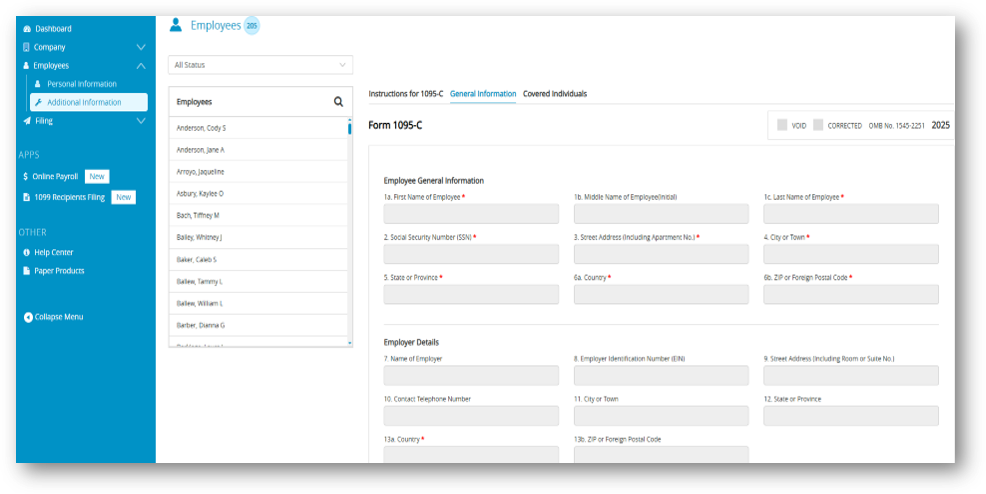
- Select Employees > Additional Information.
- Select an employee from the employee list.
For Form 1094-B (General Employers)
If your company is configured to file Form 1094-B, complete the employee’s Form 1095-B information.
- Enter the required information in the General Information tab.
- Complete the Covered Individuals tab, if applicable.
- Refer to the Instructions for 1095-B tab for guidance on completing the required fields.
- Click Save.
For Form 1094-C (Applicable Large Employers)
If your company is configured to file Form 1094-C, complete the employee’s Form 1095-C information.
- Enter the required information in the General Information tab.
- Complete the Covered Individual tab, if applicable.
- Refer to the Instructions for 1095-C tab for guidance on completing the required fields.
- Click Save.
Related Links: