
Set up a company correctly in CheckMark Online 1095 to help prepare accurate ACA forms and ensure a smooth filing process. The information you enter during company setup is used throughout the application to generate Forms 1094-B, 1095-B, 1094-C, and 1095-C.
Review each section carefully and complete all applicable fields before entering employee information.
Company Information
The Company Information screen is used to enter your organization’s details, including business information, filing address, and contact information.
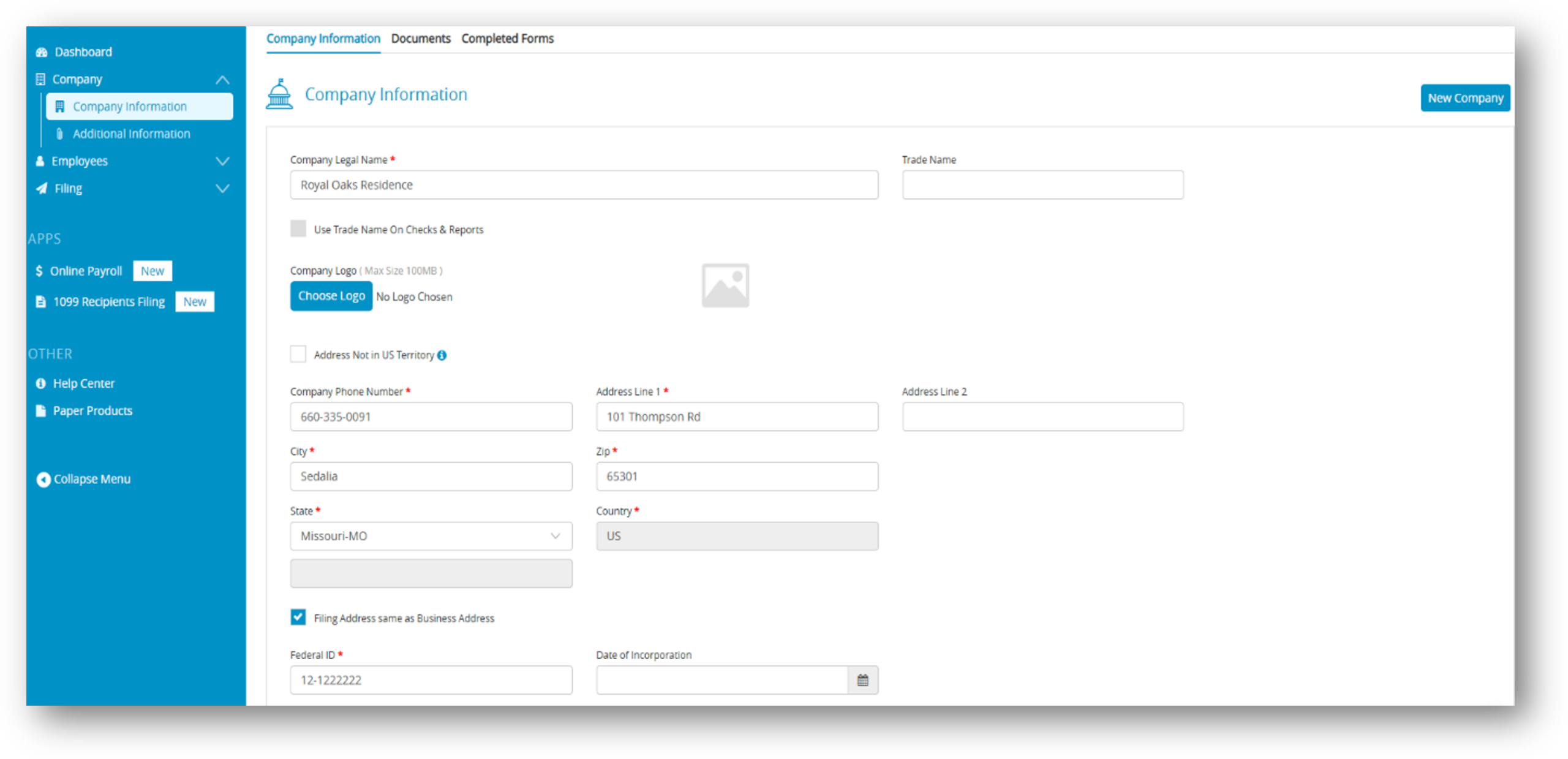
Entering Company Information
- Select Company from the menu.
- Click Company Information.
- (Optional) Click Choose Logo to upload your company logo.
- Complete the required fields, including:
- Company Legal Name & Trade Name
- Federal ID and Date of Incorporation
- Phone Number
- Business Address
- City
- State
- ZIP Code
- If your filing address is the same as your business address, select Filing Address Same as Business Address.
- (Optional) Complete the Contact Information section.
- Click Save to store your changes.
Your company information is now available for use throughout CheckMark Online 1095 and will automatically populate applicable ACA forms.
Additional Information
The Additional Information screen is used to configure your ACA filing information and employer classification. The selections made in this section determine the forms, data entry screens, and reporting requirements available for your company.
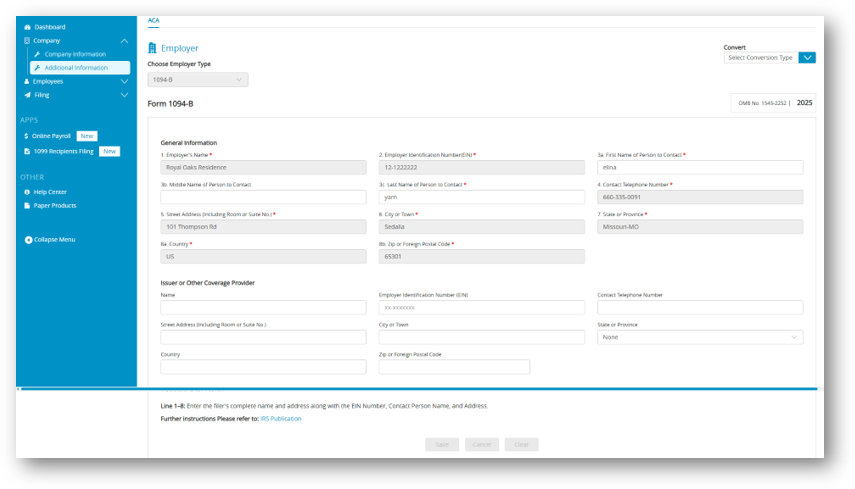
By default, Form 1094-B is selected.
-
- Form 1094-B is used by General Employers.
- Form 1094-C is used by Applicable Large Employers (ALEs).
Important: Before entering additional information, verify that you have selected the correct Employer Type. These selections determine the information required for ACA reporting.
General Employer (Form 1094-B)
If your organization files Form 1094-B:
- Complete all required fields in the General Information section.
- If applicable, enter information in the Issuer or Other Coverage Provider section. Complete these fields only if they are required for your ACA filing.
- Click Save to save your changes.
Applicable Large Employer (Form 1094-C)
If your organization files Form 1094-C:
- Select 1094-C from the Choose Employer Type drop-down list.
- Additional tabs become available after the employer type is selected.
- Complete all required information in the following tabs:
- General Information
- ALE Member Information – Monthly
- Aggregated ALE Group
- Refer to the Instructions for the 1094-C tab for guidance on completing the required information.
- Click Save to save your changes.
Converting Employer Type
If your organization’s ACA filing requirements change, you can convert the employer type without creating a new company.
Convert an ALE Employer to a General Employer
- Open the Additional Information screen.
- From the Convert drop-down menu, select Convert ALE to General.
- When the confirmation message appears, click Yes to continue.
- A confirmation message is displayed indicating that the employer type has been successfully converted from ALE to General.
Convert a General Employer to an ALE Employer
- Open the Additional Information screen.
- From the Convert drop-down menu, select Convert General to ALE.
- When the confirmation message appears, click Yes to continue.
- A confirmation message is displayed indicating that the employer type has been successfully converted from General to ALE.
Related Links: