
This article explains how to generate and print ACA forms for your company and employees. CheckMark Online 1095 allows you to print Forms 1094-B, 1094-C, 1095-B, and 1095-C on blank paper. Before printing, verify that all company and employee information has been entered accurately to ensure the forms are generated correctly.
Printing Company ACA Forms
Use this option to generate and print your company’s Form 1094-B or Form 1094-C.
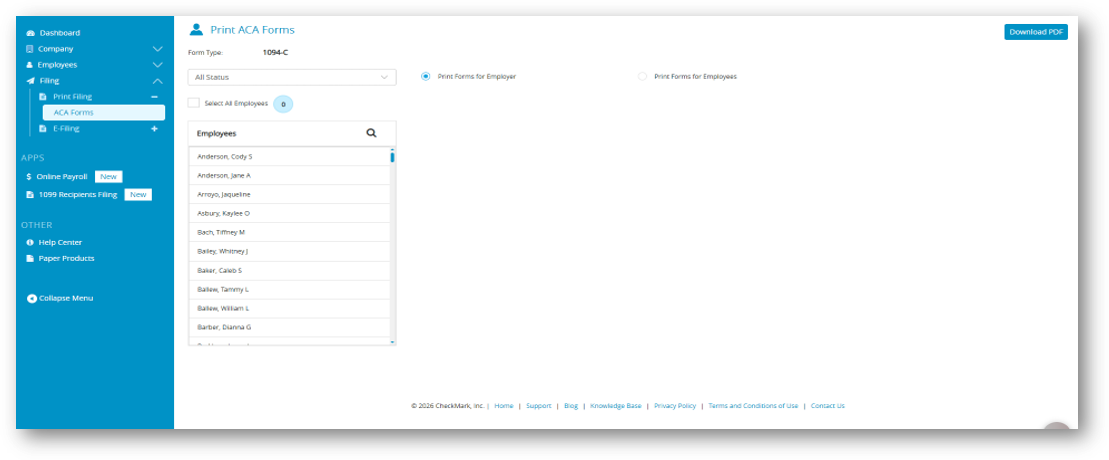
- Select Filing > Print Filing.
- Click ACA Forms.
- Select Print Forms for Employer.
- Click Download PDF.
- If validation errors are found in your company information, a warning message is displayed.
- Click Cancel to return to the company setup screens and correct the information.
- If you have reviewed the information and want to continue, click Continue Anyway.
- The appropriate Form 1094-B or 1094-C is generated and downloaded to your computer as a PDF.
Printing Employee ACA Forms
Use this option to generate and print employee Forms 1095-B or 1095-C.
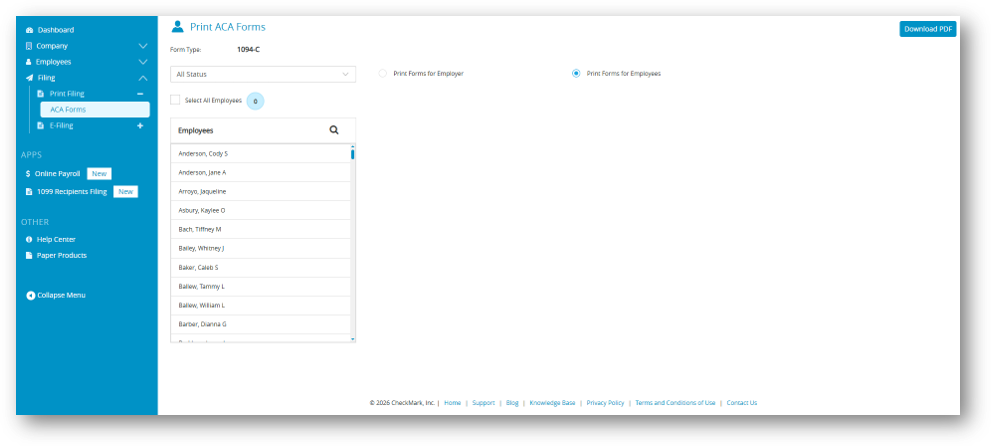
- Select Filing > Print Filing.
- Click ACA Forms.
- Select the ACA form you want to print.
- Select Print Forms for Employees.
- Select one or more employees from the employee list.
- (Optional) Use the Status filter to display employees by status, such as:
- Printed
- Completed
- Validated
- Corrected
- Void
- Click Download PDF.
- If validation errors are detected in the company or employee records, a warning message is displayed.
- o Click Cancel to return and correct the information.
- o If you have reviewed the information and want to continue, click Continue Anyway.
- The selected employee Forms 1095-B or 1095-C are generated and downloaded to your computer as a PDF.
Note: Review the downloaded forms before printing or submitting them to ensure all information is accurate and complete.
Filtering Employees
Use the Status drop-down list to filter employees based on the progress of their ACA forms. Filtering helps you quickly identify employees who require additional action before printing or filing.
The available status filters include:
-
- Printed
- Not Printed
- Completed
- Not Completed
- Validated
- Not Validated
- Corrected
- Not Corrected
- Voided
- Not Voided
These filters help you identify employees who still require attention before printing or filing.
Printed Status
The Printed status indicates whether a Form 1095 has been printed for an employee.
-
- Printed displays employees whose forms have already been printed.
- Not Printed displays employees whose forms have not yet been printed.
When an employee’s Form 1095 is successfully generated through Print Forms for Employees, the employee is automatically marked as Printed.
Completed Status
The Completed status indicates whether an employee’s ACA information has been processed for filing.
-
- Completed displays employees whose forms have been generated for filing.
- Not Completed displays employees whose forms have not yet been processed.
After employee forms are successfully generated for filing, the employee status is automatically updated to Completed.
Validated Status
The Validated status indicates whether an employee’s information meets the requirements for ACA filing.
-
- Validated displays employees whose records are complete and ready for printing or e-filing.
- Not Validated displays employees whose records contain missing or invalid information.
If an employee is Not Validated, open the employee’s Personal Information or Additional Information screen to correct the highlighted fields.
Note: Fields highlighted in red contain invalid or incomplete information and must be corrected before the employee record can be successfully filed.
Corrected Status
The Corrected status identifies employee records that have been updated after a previously filed Form 1095 contained incorrect information.
Use this status when submitting a corrected Form 1095 to the IRS to replace a previously filed form.
Voided Status
The Voided status identifies employee records that should cancel a previously submitted Form 1095 because it was filed in error, such as a duplicate filing or a form submitted for the wrong employee.
Use this status only when a previously filed Form 1095 must be voided in accordance with IRS filing requirements.
Related Links: