
Manage employees in CheckMark Online 1095 to help keep your ACA reporting information accurate and up to date. You can edit and update existing employee information, delete or search employee records, and review their details before printing or e-filing Forms 1095. Keeping employee records current helps simplify ACA compliance and reduces the risk of reporting errors.
Updating an Existing Employee
You can update an employee’s personal or ACA-related information at any time before filing or whenever corrections are required.
- Select Employee > Personal Information.
- From the employee list, select the employee.
- Click Personal Information to update the employee’s personal details, if necessary.
- Make the required changes.
- Click Save to apply your changes.
If you need to update ACA reporting information, open Employee > Additional Information, make the necessary changes, and click Save.
Deleting an Employee
If an employee record is no longer needed, you can remove it from the company.
- Go to Employee > Personal Information.
- Select the employee from the employee list.
- Click Delete Employee.
- When the confirmation message appears, verify that you have selected the correct employee, then click Yes to delete the record.
Note: Deleting an employee permanently removes the employee record from the selected company.
Voiding an Employee
If a Form 1095 was filed or included in a filing by mistake, you can mark it as Voided and submit a voided form to the IRS. Refer to the applicable IRS instructions for information on when a voided return should be filed.
- Select Employee > Personal Information.
- Select the employee from the employee list.
- Click Update Employee.
- Select the Void check box.
- Click Save.
After Marking a Form as Voided
-
- If the form was originally printed, print a new Form 1095 showing the Void status and submit it to the IRS with a new Form 1094, if required.
- If the form was originally e-filed, generate a new XML file that includes the voided employee record and submit it to the IRS.
For more information, see Printing ACA Forms or E-Filing ACA Forms.
Correcting an Employee
If a Form 1095 has already been filed with incorrect information, you must submit a Corrected Form 1095 to the IRS.
- Select the employee from Employee > Personal Information.
- Update the employee’s personal information, if necessary, and click Save.
- If you need to update Covered Individual information, open Employee > Additional Information, make the required changes, and click Save.
- Return to the employee record.
- Select the Corrected check box.
- Verify the updated information and click Save.
After Marking a Form as Corrected
-
- If the form was originally printed, print a Corrected Form 1095 and submit it to the IRS with a new Form 1094, if required.
- If the form was originally e-filed, generate a new XML file containing the corrected employee information and submit it to the IRS.
For more information, see Printing ACA Forms or E-Filing ACA Forms.
Documents
The Documents tab allows you to upload and store employee-related documents, such as Social Security documentation or ACA-related supporting documents, for future reference.
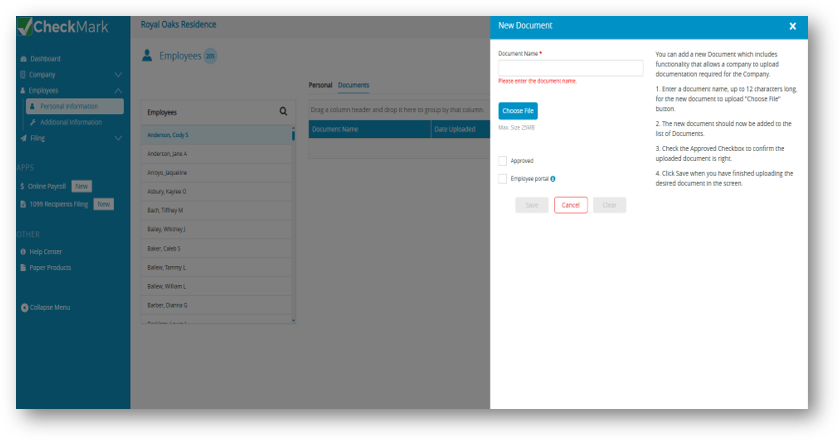
Uploading an Employee Document
- Select Employee > Personal Information.
- Select the employee from the employee list.
- Click the Documents tab. Click Add New Document. The Add New Document side panel opens.
- Enter a name or description for the document. Click Choose File and browse to the document on your computer.
- Select the file you want to upload and click Save.
The document is uploaded and added to the employee’s document list, where it can be viewed or managed as needed.
Note: You can upload documents such as Social Security documentation, ACA-related forms, or other supporting records associated with the selected employee.
Related Links: