
The Import feature allows you to quickly import employees from a text (.txt) or comma-separated values (.csv) file in CheckMark Online 1095. You can import employee personal information, ACA information, or both, depending on your data source.
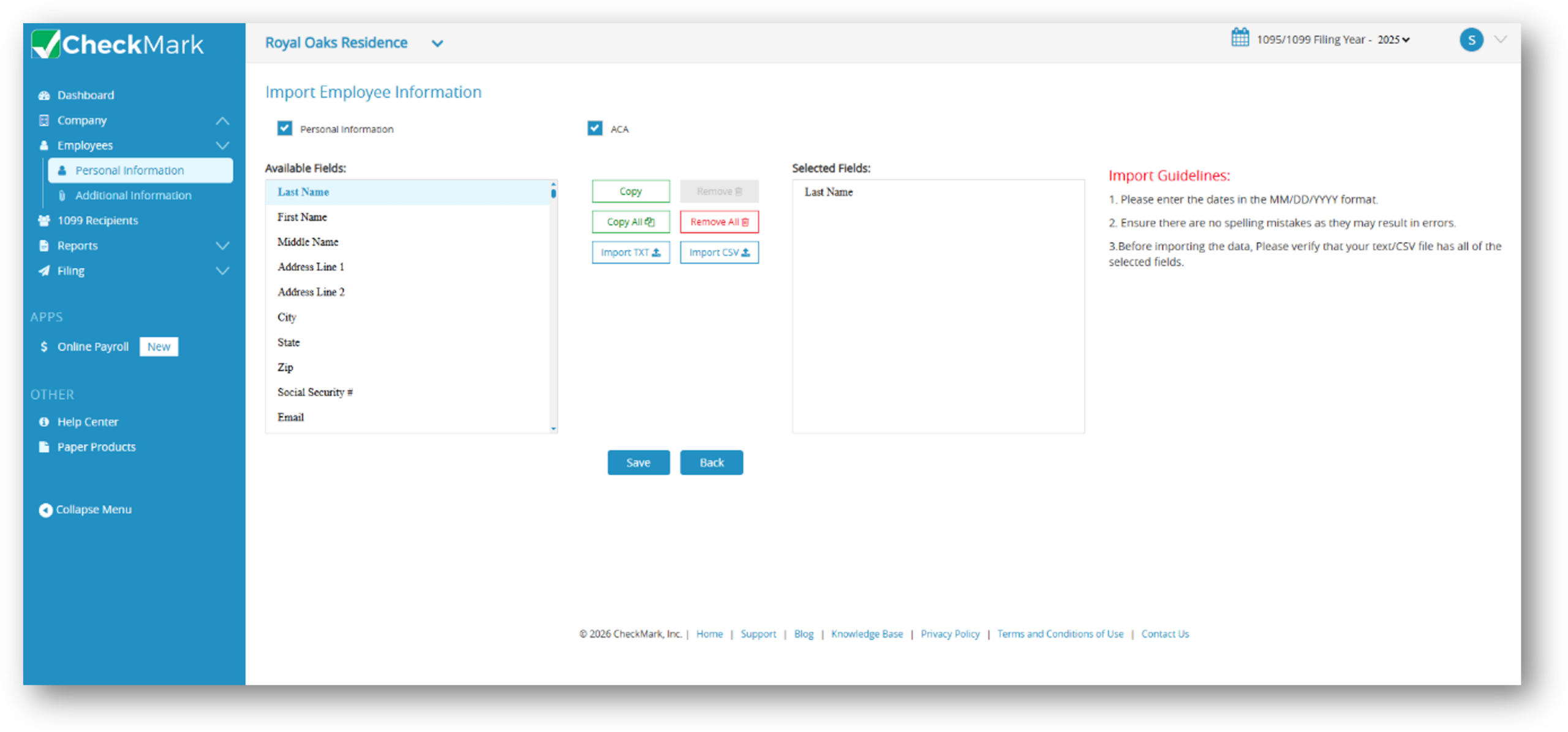
Importing Employee Records
- Select Employee > Personal Information.
- Click Import in the upper-left corner of the screen.
- In the Import window, select one or both of the following options:
- Personal Information
- ACA Information
- If you are using CheckMark Online Payroll, you can select ACA Information only to import employee ACA data.
- A list of available import fields is displayed.
- Select the fields you want to import and click Copy.
- To include all available fields, click Copy All.
- Select the appropriate file type:
- .txt for text files.
- .csv for comma-separated values (CSV) files.
- Browse to the file on your computer, select it, and click Open.
- The application validates the file and imports the employee data.
- If the file contains formatting errors or invalid data, an error message is displayed describing the issue.
Important: To successfully import employee records, your import file must include all required fields, such as First Name, Last Name, Address Line 1, City, State, ZIP Code, and either Social Security Number (SSN) or Date of Birth, as applicable.
Related Links: