

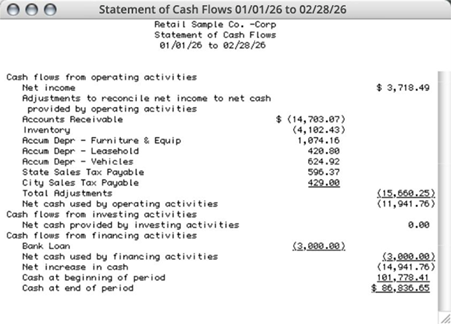
In MultiLedger, a Statement of Cash Flows shows the incoming and outgoing cash over the selected period. This is shown by starting with the net income (or loss) at the beginning of the period from the Income Statement, then showing each asset, liability, and equity account whose value has changed during the selected period. The result is net cash at the end of the period. Please Note: that this report shows only the net increase or decrease in each account, not the balance.
The Statement of Cash Flows report calculates the net cash at the end of the period by adding the following items:
● Net Income for the period
● Changes to accounts shown in the three report sections: Operating Activities, Investing Activities, and Financing Activities
● Cash at the beginning of the period.
For details about assigning accounts for the Cash Flow Statement, see “Setting Up Cash Flow Designations.”
- Click Cash Flow in the Command Center.
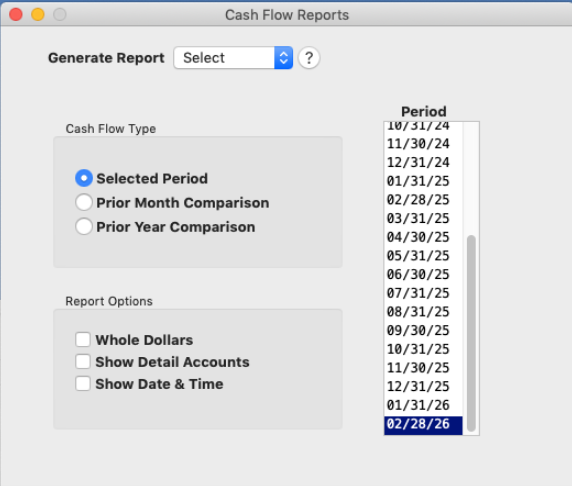
MultiLedger provides the following types of cash flow reports:
Types of Cash Flow Reports
Selected Date: A standard Statement of Cash Flows report for the selected month or range of months.
Prior Month Comparison: Compares the selected month(s) with the previous month.
Prior Year Comparison: Compares the selected month(s) with the same period in the prior year.
Cash Flow Report Options:
Three options are available for each type of report:
Whole Dollars: Rounds dollars and cents to whole dollars on the report.
Show Detail Accounts: Shows all accounts regardless of groupings that have been made with the Financial Statements window.
Show Date & Time: Date and time printed at the bottom of the page.
- Select a report type.
For details, see the previous descriptions of the types of cash flow reports available.
- Select a period for the report.
You can select one month or a range of months.
- If necessary, click the appropriate checkboxes to select or deselect report options.
For details, see the previous descriptions of cash flow report options.
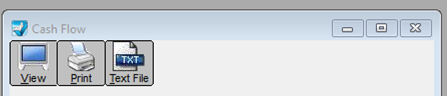
- Click the dropdown list and select View, Print, or Text File to view, print, or export the report in Text or CSV file format.
Note: In 32-bit applications, the View, Print, Text File, and XLS Files buttons are available directly on the screen
Cash Flow Statement-Selected Date report example:
Related Articles
How to Create Chart of Accounts Report
How to Create Trial Balance Report
How to Create Transaction Journals Reports
How to Create General Ledger Report
How to Create Balance Sheet Report
How to Create Income Statement Report
How to Create Financial Snapshot Reports
How to Create Sales Tax Reports